
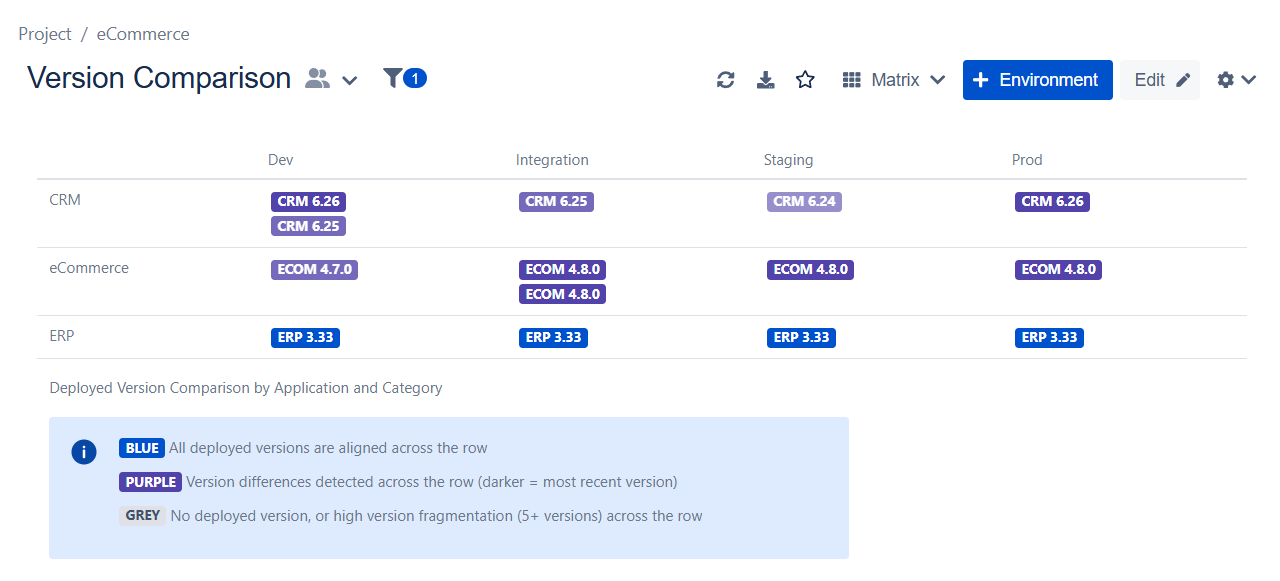
The Version Comparison Template helps you compare deployed versions across environments for the same application in a matrix view.
It provides an immediate overview of version consistency by highlighting deployed versions with color-coded labels. This makes it easy to identify environments running different versions and spot potential deployment gaps before they become issues.
This article outlines the use cases for this template and step-by-step instructions on how to create a view using it. For additional information on how Matrix Views function, refer to the Matrix Views article.
Use Cases
-
Release Validation: Verify that the same version has been deployed consistently across Development, Testing, Staging, and Production Environments before progressing to the next release phase. This helps teams quickly identify missing or incomplete deployments.
-
Customer Rollout Tracking: Monitor the progress of phased deployments across customer-specific Environments. Teams can easily determine which customers have already received a version and which ones are still running older releases.
-
Environment Drift Detection: Detect situations where Environments that should be aligned are running different versions. This helps prevent unexpected behaviors, testing inconsistencies, and production incidents caused by version discrepancies.
Set up the Version Comparison Template
To set up the Version Comparison template, follow these steps:
-
In Golive, locate and click the View Browser.
-
From the dropdown menu, select + Create View.
-
From the options provided, select the Version Comparison template.
-
Give your new View a descriptive name for easy identification.
-
Search for and add the Environments that you want to monitor using this View.
-
Click Create to generate the View.
The newly created View based on the Version Comparison template will be displayed. You can always access it from the View Browser (More views) and mark it as favorite by clicking the star icon next to the View title.
The template uses the Deployed Version Comparison label to display deployed versions using color-coded labels. Once your View is created from the template, you are free to customize the Matrix layout by changing the row and column configuration. This allows you to compare deployed versions using any Environment attributes that are relevant to your organization, such as environment type, customer, region, or business unit.