
In this guide, you'll learn how to use Jira Automation and the Golive REST API to update an Environment attribute with a value from a Jira work item.
This is useful when a Jira work item represents a planned change and you want Golive to reflect the new Environment state only after the change has been completed.
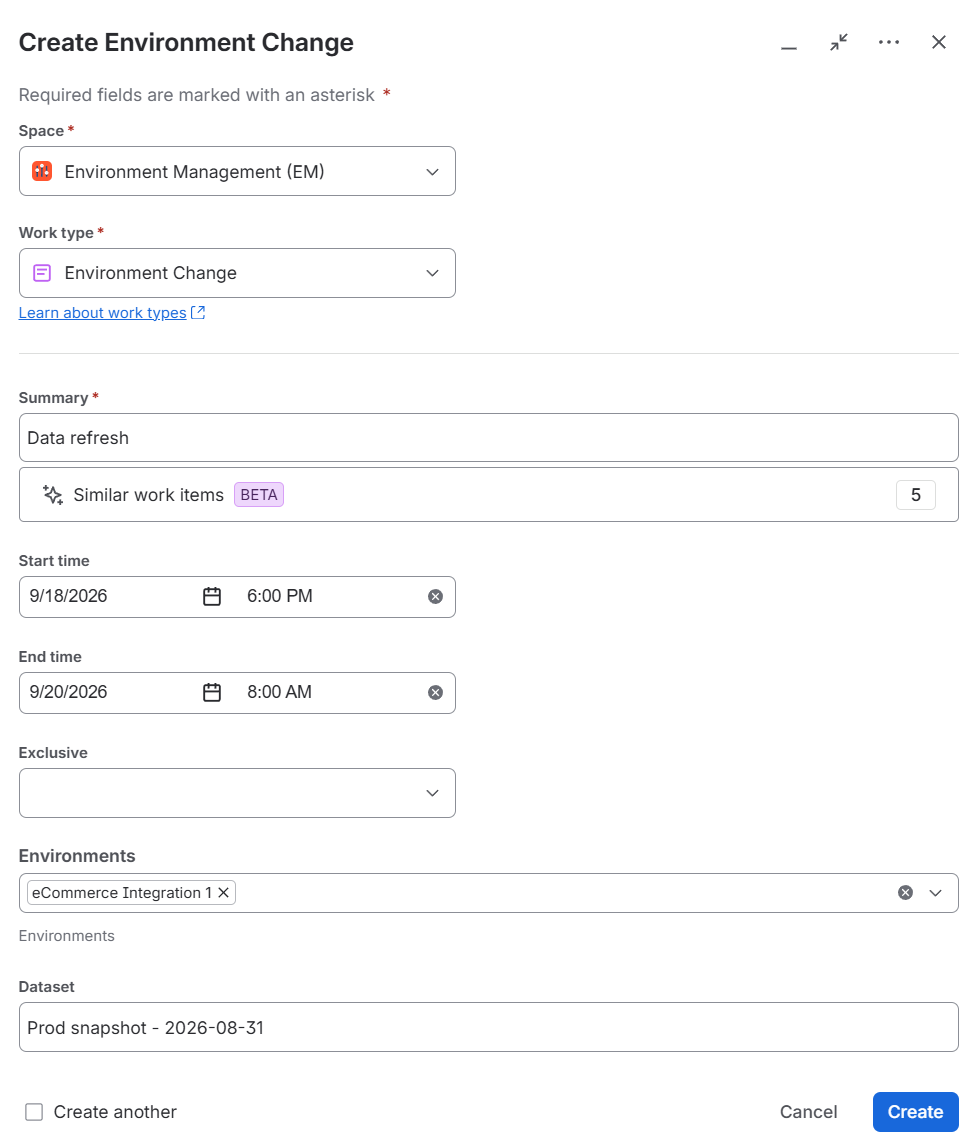
In this example, an Environment Change work item is used to perform a data refresh:
-
The target Environment(s) are selected in the Environments field.
-
The new dataset is entered in a Jira custom field named Dataset.
-
When the work item transitions to Done, Jira Automation updates the Dataset attribute of each selected Golive Environment.
Requirements
-
Golive Cloud installed on Jira Cloud.
-
Jira Administrator permission to create and modify Jira Automation flows.
-
A Golive Environment custom field, such as Environments, available on the relevant work type.
-
A Jira custom field named Dataset.
-
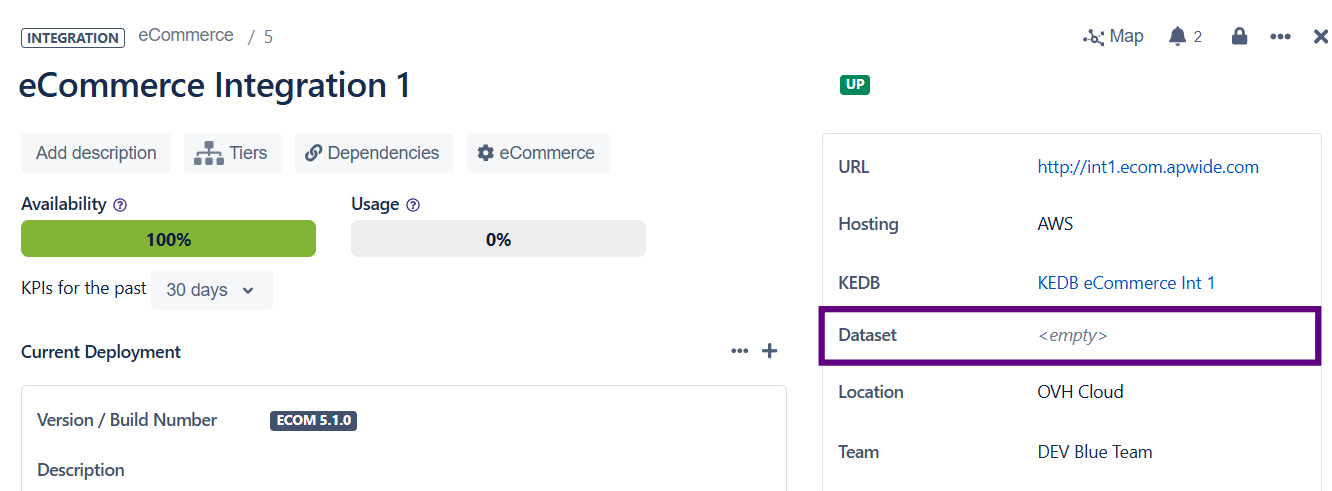
A Golive Environment attribute named Dataset.
-
A Golive API Token.
Info
The Jira custom field and Golive Environment attribute do not need to have the same name. In this example, both are named Dataset to make the mapping easier to understand.
Configuration Overview
In this example, we create a Jira Automation flow that:
-
Triggers when an Environment Change moves from In Progress to Done.
-
Checks that both the Environments and Dataset fields are populated.
-
Retrieves the Golive Environments selected on the work item.
-
Loops through the selected Environments.
-
Calls the Golive REST API to update the Dataset attribute of each Environment.
Step 1: Configure the Environment Change Work Item
Add a Dataset custom field to the Environment Change work type.
In this example:
-
Environments:
eCommerce Integration 1 -
Dataset:
Prod snapshot - 2026-08-31
The Environments field identifies which Golive Environment should be updated, while Dataset contains the new value that will be pushed to Golive when the change is completed.
Make sure that a Dataset Environment attribute also exists in Golive.
Step 2: Create a Jira Automation rule
Create a new Jira Automation rule with the following configuration:
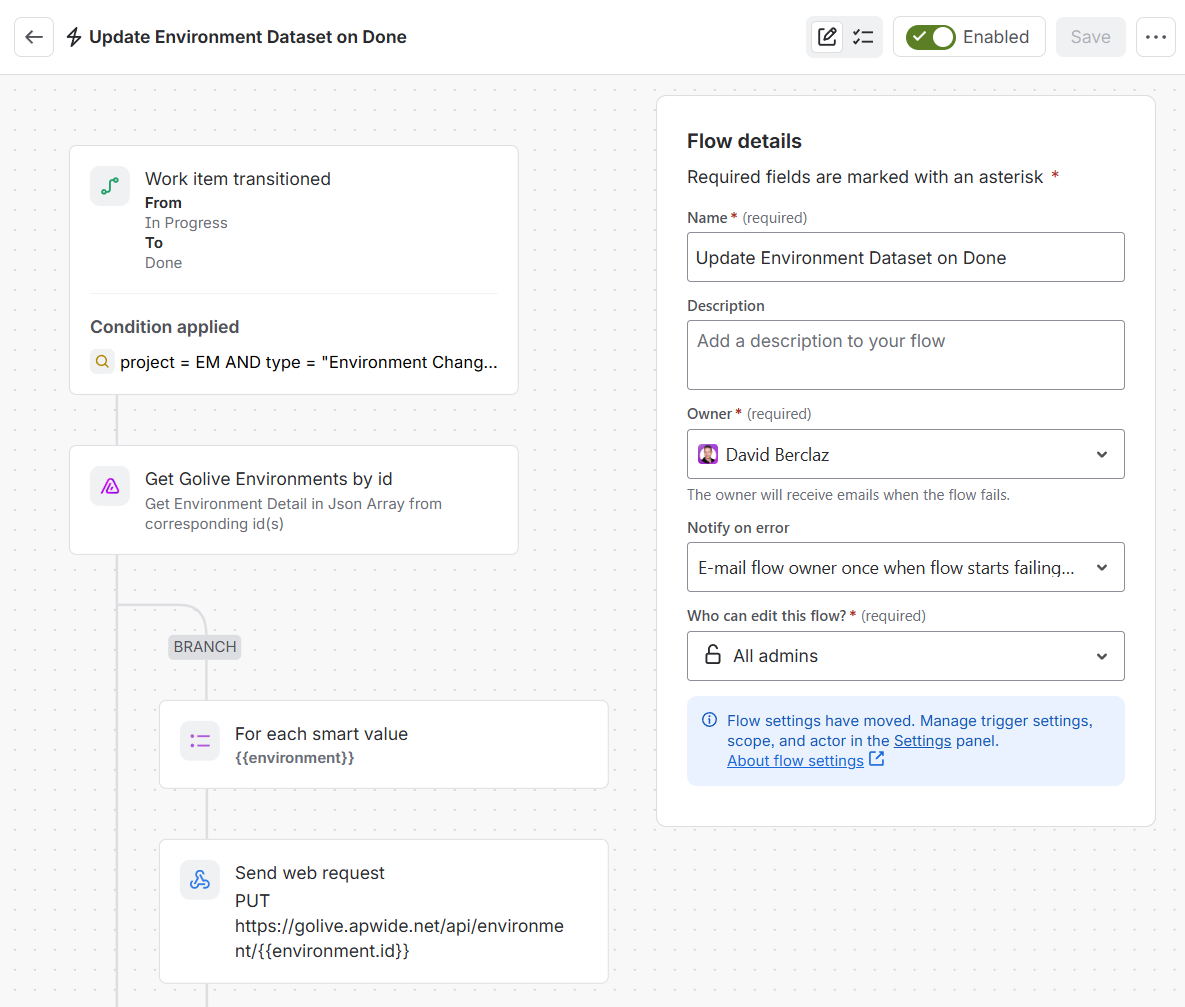
Trigger: Work item transitioned
This flow is triggered when the work item transitions from In Progress to Done.
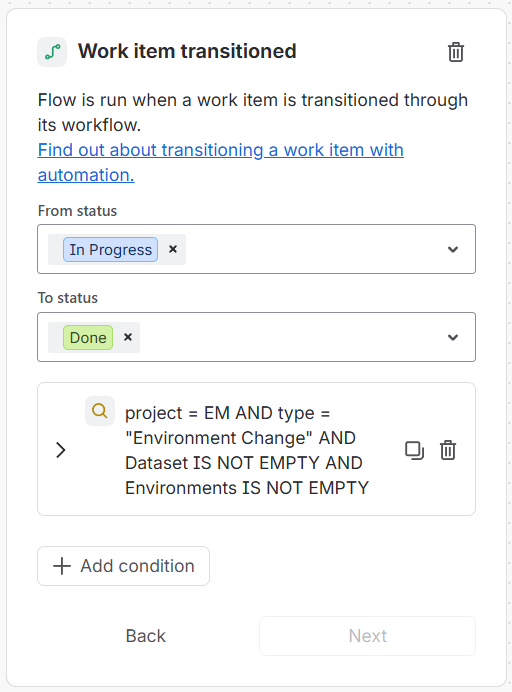
JQL condition
project = EM
AND type = "Environment Change"
AND Dataset IS NOT EMPTY
AND Environments IS NOT EMPTY
Adjust the Jira space key, work type, and field names to match your configuration.
Action: Get Golive Environments by id
This action retrieves all Environments from the Environments custom field.
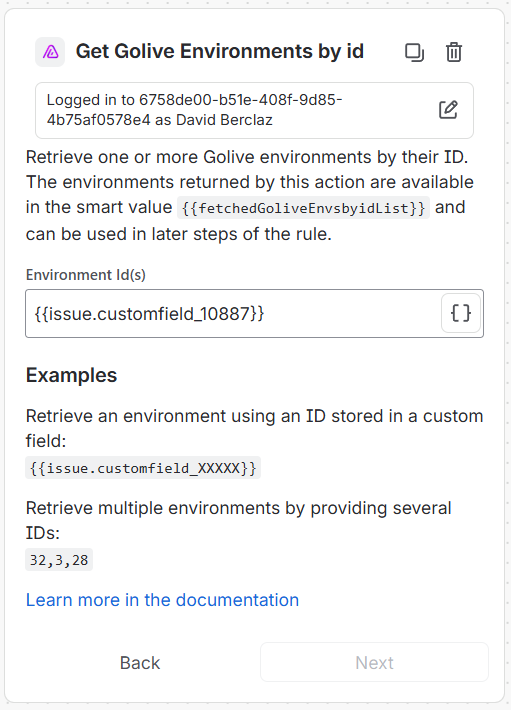
Environment Id(s)
{{issue.customfield_XXXXX}}
Replace customfield_XXXXX with the ID of your Golive Environments custom field.
The retrieved Environments are available to subsequent automation steps through:
{{fetchedGoliveEnvsbyidList}}
This action supports one or multiple Environments selected in the Jira work item.
Branch: Advanced branching
Add a Branch with Advanced branching. The actions inside this branch will be executed once for each Golive Environment selected on the work item.
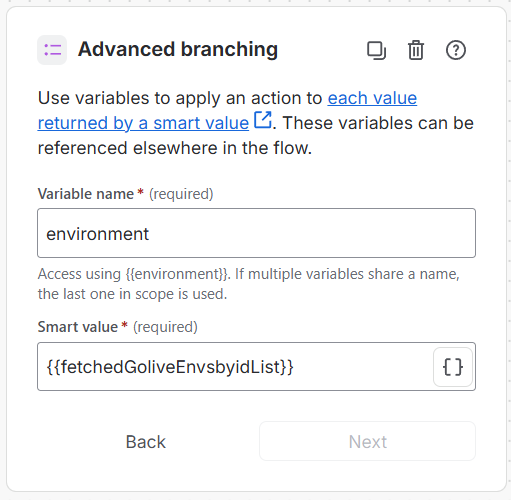
Variable name
environment
Smart value
{{fetchedGoliveEnvsbyidList}}
Action: Send web request
The PUT /api/environment/{id} endpoint updates the specified Golive Environment. Only the attribute included in the request needs to be provided.
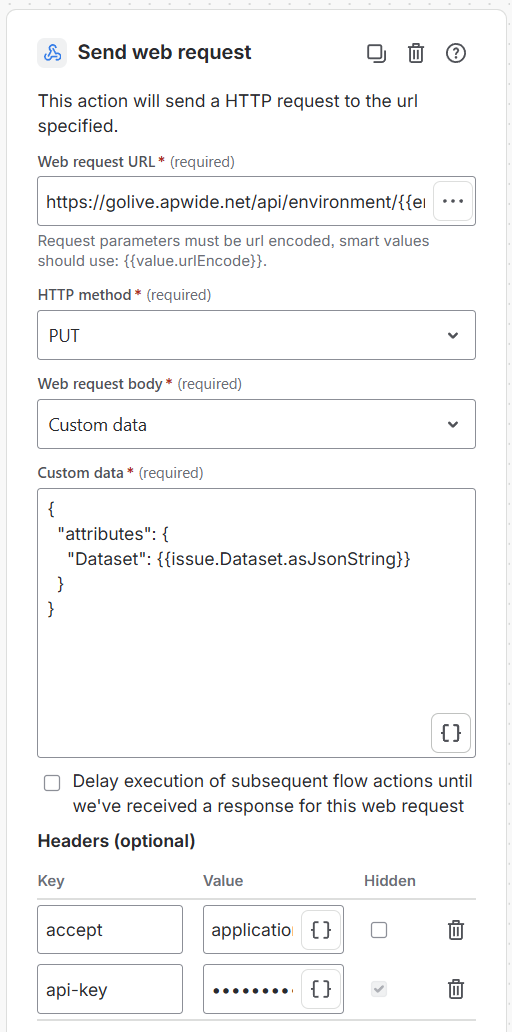
Web request URL
https://golive.apwide.net/api/environment/{{environment.id}}
Custom data
{
  "attributes": {
    "Dataset": {{issue.customfield_YYYYY.asJsonString}}
  }
}
Replace customfield_YYYYY with the ID of your Jira Dataset custom field.
Using asJsonString ensures that the Jira field value is correctly encoded in the JSON request.
Headers
-
accept:application/json -
api-key: Generate a Golive API Token and paste it as the value.
Test your Automation
Create an Environment Change with:
Environments: eCommerce Integration 1
Dataset: Prod snapshot - 2026-08-31
Move the work item to In Progress, then transition it to Done.
The Jira Automation flow runs and updates the selected Golive Environment.
The Environment should now display:
Dataset: Prod snapshot - 2026-08-31
The same approach can be used to synchronize other Jira values with Golive Environment attributes, such as database versions, configuration versions, locations, owners, or other information describing the current state of an Environment.
Need Assistance?
For support with integrating Golive and Jira Automation, reach out to our Customer Portal.