
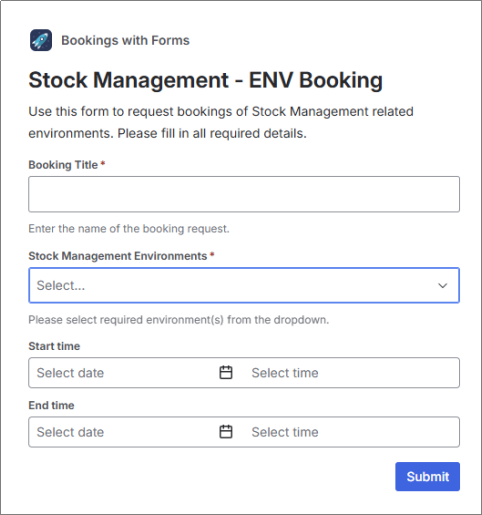
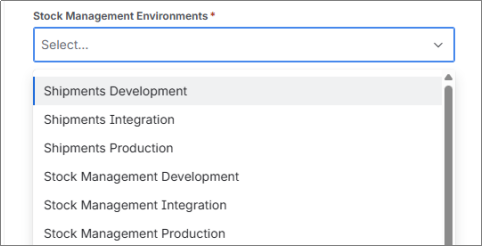
Jira Forms do not currently support Jira custom fields, including the Golive Environments field. To let users select environments in a form, you therefore need to use a Jira field type supported by Forms, such as a Select List (multiple choices) field.
When the form is submitted, Jira Automation copies the selected values from this field to the Golive Environments field on the work item.
The select-list options must match the names of your Golive environments exactly. You can maintain them manually or use a separate automation to synchronize them whenever environments are added or updated in Golive. This second automation is not covered in this guide. Contact us if you are interested in implementing it.
Requirements
Before creating the automation, make sure that:
-
Golive Cloud is installed on your Jira Cloud site.
-
You have created a Jira custom field of type Select List (multiple choices).
-
The field is available on the relevant request form, work item screen, or field context.
-
Each option in the Select List matches a Golive environment name exactly.
-
You have permission to create or modify Jira Automation rules.
For example, if your Golive environments are named ERP Development, ERP Staging, and ERP Production, the options in your Jira field must use the same names.
Configuration Overview
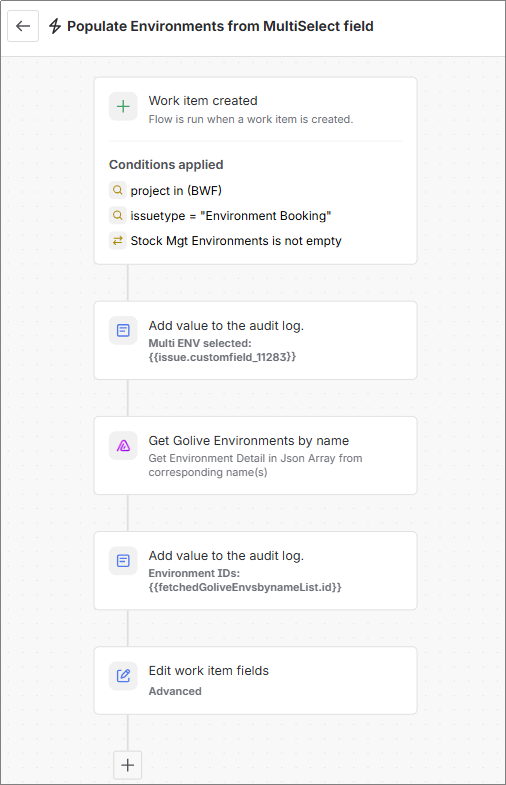
The automation will:
-
Run when a work item is created.
-
Read the environments selected by the user.
-
Find the matching environments in Golive.
-
Retrieve their Golive environment IDs.
-
Populate the Golive Environments field.
Configuration Steps
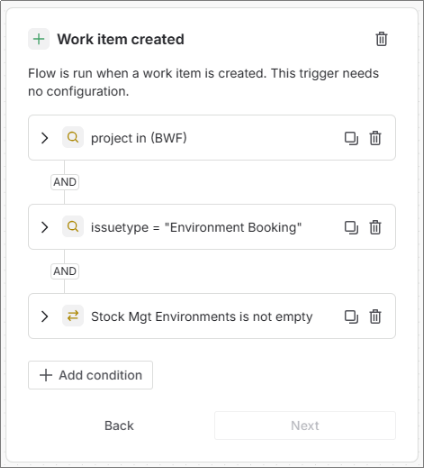
1. Trigger: work item created
You can add conditions to restrict the rule to a specific space, request type, work item type, or form.
For example, you may want the automation to run only for a deployment request submitted through Jira Service Management.
2. Action: Log action (optional)
Add a Log action to confirm that Jira Automation can read the values selected in the form. This step is optional, but it can be useful when testing or troubleshooting the rule.
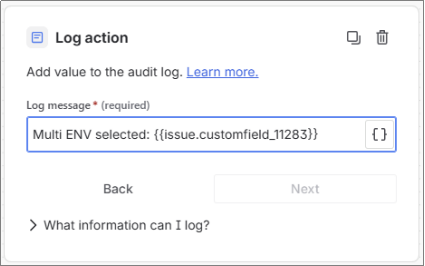
Log message
Multi ENV selected: {{issue.customfield_11283}}
Replace customfield_11283 with the ID of your own multiple-choice Select List field.
3. Action: Get Golive Environments by name
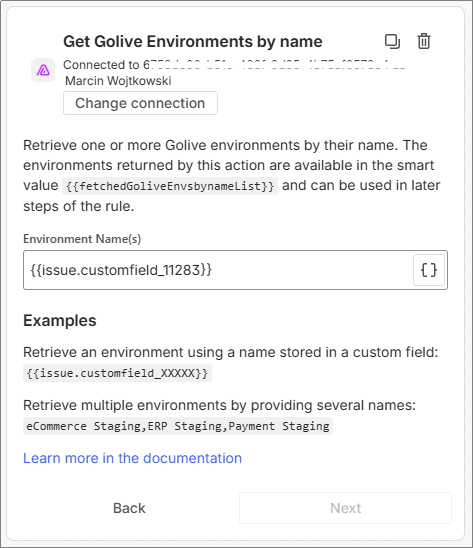
Environment Names(s)
{{issue.customfield_11283}}
Replace customfield_11283 with the ID of the field containing the environment names selected by the user.
4. Action: Log action (optional)
Add a Log action to confirm that IDs of the matching Golive environments are returned as a JSON array. This step is optional, but it can be useful when testing or troubleshooting the rule.
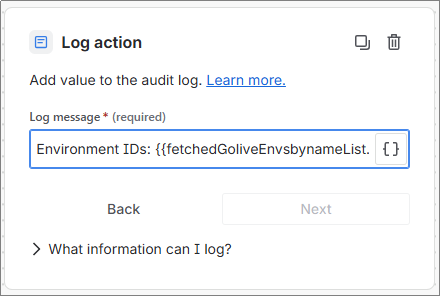
Log message
Environment IDs: {{fetchedGoliveEnvsbynameList.id.asJsonStringArray}}
5. Action: Edit work item
Jira Automation will populate the Golive field with the environments selected by the user in the Jira Form.
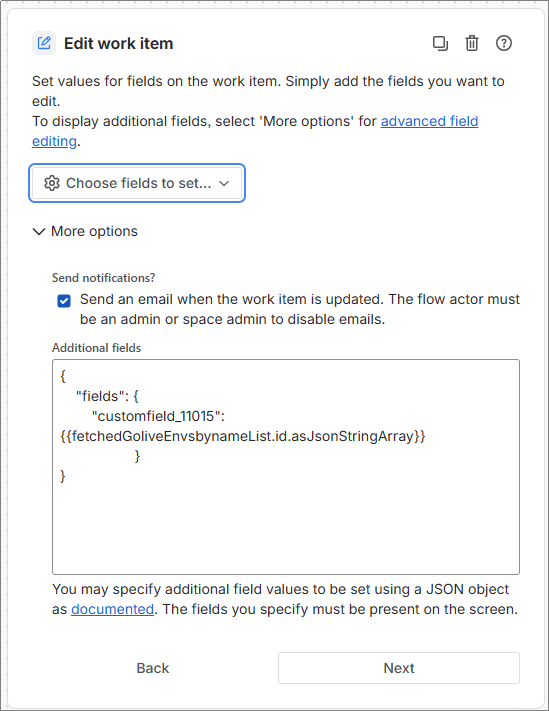
Additional fields
{
    "fields": {
        "customfield_11015": {{fetchedGoliveEnvsbynameList.id.asJsonStringArray}}
    }
}
Replace customfield_11015 with the ID of your Golive Environment Custom Field.
Test the automation
Submit a new request or create a work item using the relevant form.
Select one or more environments and verify that:
-
The automation rule completes successfully.
-
The audit log contains the expected field values and Golive environment IDs.
-
The Golive Environments field is populated with the selected environments.
If no environments are returned, check that the Jira Select List options match the Golive environment names exactly, including spaces and capitalization.
Need Assistance?
For support with integrating Golive and Jira Automation, reach out to our Customer Portal.