
Golive comes with three Jira Automation Actions:
Find Golive Environments
Use this action to retrieve Golive environments matching the selected search criteria. The environments returned by this action are available in the smart value {{fetchedGoliveEnvsList}} and can be used in later steps of the rule.
Examples:
Find environments with specified attribute value entered in a Jira custom field:
GoliveAttributeName={{issue.customfield_XXXXX}}
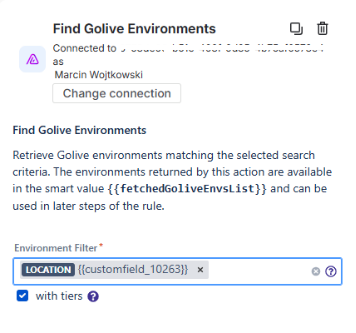
In case you would like to use custom field on your Jira work item for dynamic selection of search criteria you can input them into the environment filter by typing in {{issue.customfield_XXXXX}} and later selecting the required parameter from the available criteria list.
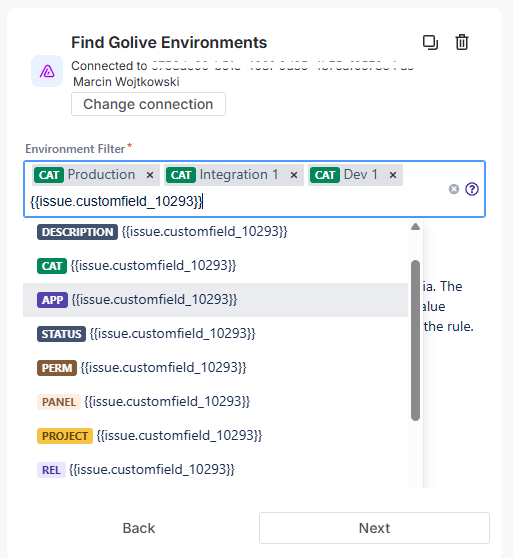
You can also use the criteria the same way you do when filtering environments in Golive (e.g. by application, category, status or Jira space).
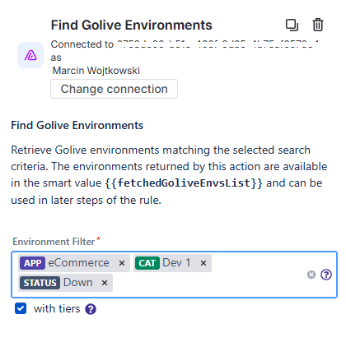
Get Golive Environments by id
Use this option to retrieve one or more Golive environment(s) by their respective IDs. The environments returned by this action are available in the smart value {{fetchedGoliveEnvsbyidList}} and can be used in later steps of the rule.
Examples
Retrieve an environment using an ID stored in a custom field - e.g. Golive environments field or text field containing string array:
{{issue.customfield_XXXXX}}
Retrieve multiple environments by providing several IDs in the form of list separated by commas:
250,253,258
Get Golive Environments by name
Use this option to retrieve one or more Golive environment(s) by their names.
The environments returned by this action are available in the smart value {{fetchedGoliveEnvsbynameList}} and can be used in later steps of the rule.
Examples
Retrieve an environment using a name stored in a custom field (e.g. text field containing environment names separated by commas):
{{issue.customfield_XXXXX}}
Retrieve multiple environments by providing several names separated by commas:
eCommerce Staging,ERP Staging,Payment Staging
Golive Automation actions smart value response
All three actions return the identical response, please see below an example of response for a single environment (table layout and shading introduced for greater visibility).
It contains the following environment details: application, category, name, description, permission scheme, status, URL, last deployment details, monitoring, tiers, dependencies and populated attributes.
Example
|
{id=1, |
|
|
|
application={id=1, name=eCommerce, versionPrefix=ECOM , mappedProjectId=10004, createNewVersion=true, deploymentConfiguration={showBuildNumber=true, showDescription=true, preventDeploymentMerge=true, readonlyDeployedIssues=false, preventJiraDeploymentSync=false}}, |
|
|
category={id=1, name=Dev 1, order=1, type=TESTING}, |
|
|
name=eCommerce + Dev1, |
|
|
description=, |
|
|
environmentPermissionScheme={id=2, name=Default Environment Permission Scheme, description=Default Environment Permission Scheme.}, |
|
|
status={id=2, name=Down, description=Environment is down, color=RED, order=2, type=UNAVAILABLE}, |
|
|
url=https://ecommerce.dev1.company.com, |
|
|
deployment={deploymentId=677, id=677, environmentId=1, versionName=ECOM 3.2, versionId=10158, deployer=557058:d71fb720-0c27-4869-8933-b4a0e7e94c83, deployedTime=1741018101000, categoryId=1, categoryName=Dev 1, applicationId=1, applicationName=eCommerce, description=Requested by: push Branch: main, attributes={}}, |
|
|
watched=false, |
|
|
tiers=[{id=44, name=eCommerce Dev1 - Database}, {id=45, name=eCommerce Dev1 - Webserver}, {id=46, name=eCommerce Dev1 - API}], |
|
|
incomingDependencies=[{id=80, name=Database Test}], |
|
|
outgoingDependencies=[{id=20, name=ERP Staging}, {id=81, name=ERP Dev 2}, {id=80, name=Database Test}, {id=109, name=Payment Service Integration 2}, {id=44, name=eCommerce Dev1 - Database}, {id=68, name=string - Database}, {id=33, name=Payment Service Dev 1 Test}, {id=35, name=Payment Service Dev 1 (2)}, {id=36, name=Payment Service Dev 1 (3)}, {id=106, name=Payment Service Dev 1}], |
|
|
attributes={Location 2=updated from pipeline, Admin=test-blabla, Backup Policy=Daily full and incremental backups, Database=Postgres, Dataset=Full Prod copy 2022-11-04, Location=AWS, Support=Please use our <a href="https://jira.apwide-dev-factory.io/service-desk" target="_blank">Service Desk</a>, Team=The Serious Guys, User Directory=Prod AD (2 factors authentication), Group=me@company.com, Namespace=Horizon, Location 3=AWS, My location=AWS, Owner=Paul, Country=France, Contact=administrator@apwide.com} |
|
} |
|
Smart values examples
These are example smart values you can extract and further use in your automation (with values based on the data from above response).
{{fetchedGoliveEnvsList.application.versionPrefix}} → ECOM
{{fetchedGoliveEnvsList.category.name}} → Dev 1
{{fetchedGoliveEnvsList.status.description}} → Environment is down
{{fetchedGoliveEnvsList.outgoingDependencies.id}} → [20, 81, 80, 109, 44, 68, 33, 35, 36, 106]
{{fetchedGoliveEnvsList.attributes.Owner}} → Paul
Updating Golive environment fields
In case you would like to update any of Golive environment fields you can do that using the standard Jira Automation step Edit work item.
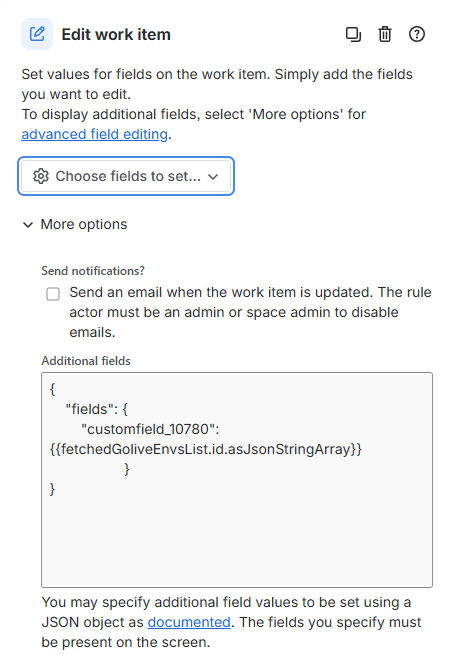
As Golive fields are not natively recognized by Jira you should use the advanced option for work item editing.
Additional fields
{
  "fields": {
    "customfield_XXXXX": {{fetchedGoliveEnvsList.id.asJsonStringArray}}
  }
}
Please note that the smart value containing environment IDs should be typed WITHOUT double quotation marks. Also please make sure to update the custom field ID accordingly to match ID of required Golive field in your Jira instance.