
Category Custom Fields are used to link Jira work items and Service Management Requests with Golive Categories. This article explains why to use them, how to create them, and how to configure and use them.
Why Use Category Custom Fields
Category Custom Fields allow teams to associate Jira work items with Golive Categories. This helps you track accurate statistics, such as the number of work items created, reproduced, or tested for specific Environment Categories.
Info
Category Custom Fields work similar to the Version concept in Jira. Like Versions, where multiple fields (e.g., Fix Version/s and Affects Version/s) use the same inventory, Category Custom Fields draw from a single list of Categories but can appear in multiple fields on the same issue.
Create a Category Custom Field
Requirements
You must have the Jira Administrator permission to create new custom fields from the Fields section.
Steps
-
On the Jira Fields page, click Create new field.
-
In the Field type field, select Apwide Golive Category.
-
In the Name field, type the name of your new custom field, for instance “Category”.
-
Click Create.
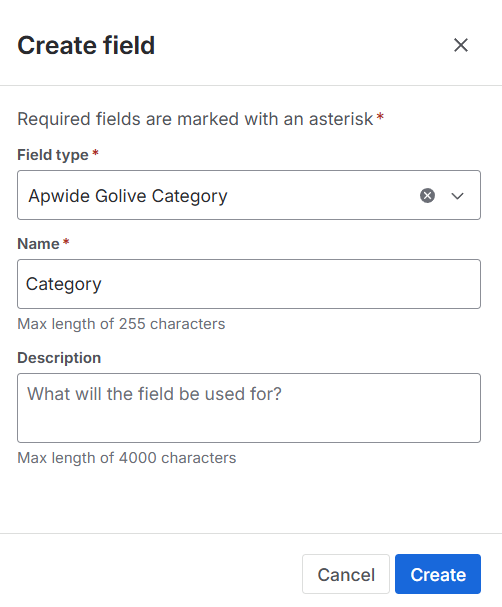
To make the Custom Field visible in work types, add it to your screens:
-
For company-managed projects, refer to: Add a custom field to a screen.
-
For team-managed projects, refer to: Add a custom field to a team-managed project.
Update the Configuration of a Field
By default, all categories can be added to your Category Custom Fields. You can restrict to a maximum number of categories if needed.
Requirements
You must be a Jira Administrator.
Steps
-
On the Jira Fields page, search for the field you want to configure.
-
Next to the field, open the three-dots menu and click on Contexts and default values.
-
For the relevant context, click Edit custom field config.
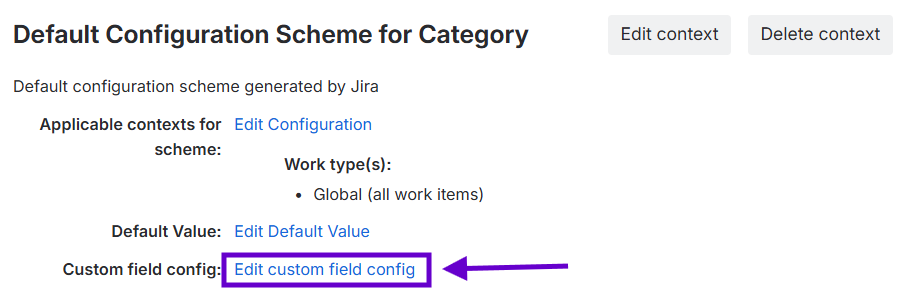
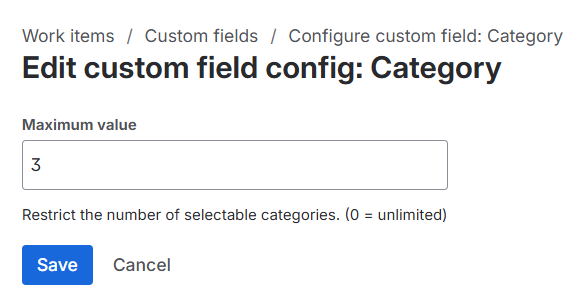
Select Categories on the Issue Screen
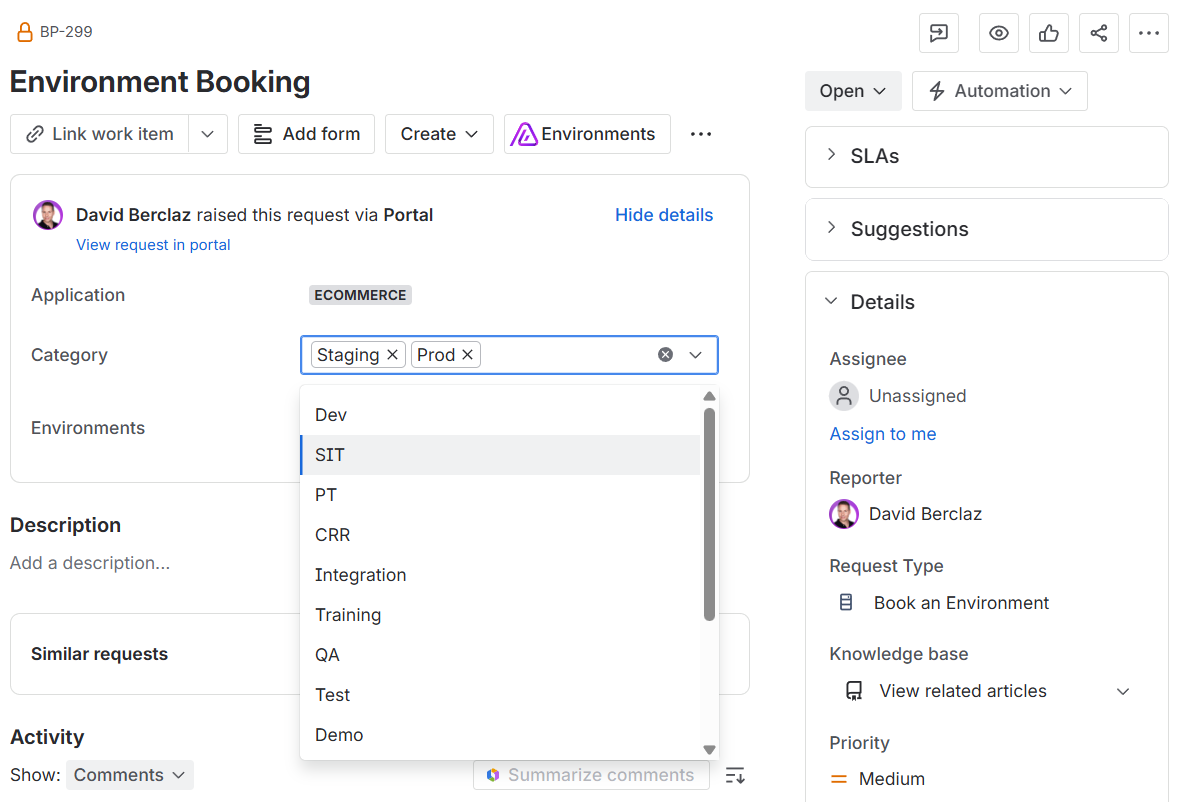
Once you’ve configured a Category Custom Field and added it to a screen, you can easily select Categories directly from your work item in Jira.
Steps
-
Open the Jira work item you want to edit.
-
Locate the Category field.
-
Search for and select one or more Categories.
Tip
To remove a Category, click the x icon next to it.
Automation
To update Golive custom fields automatically, refer to our Jira Automation examples and our Rest API documentation.