
In this article, learn how to organize timeline events by Environment Categories using Swimlanes. It covers which Calendar types support this feature, and steps to customize Swimlane display settings. For a detailed understanding of Swimlanes, refer to the Work with Swimlanes documentation.
Supported Calendar Types
Environment Category swimlanes are available for the following calendar types:
-
Issue Calendars : Grouping depends on Environment field configuration.
-
Scheduled Events : Grouping is based on planned Environments.
Customize Display Settings
Requirements
To customize Environment Category Swimlane settings, you must have one of the following roles:
-
Golive Administrator.
-
Timeline Owner.
Steps
-
Access the Timeline you want to customize.
-
Click the Edit button to enter Edit Mode.
-
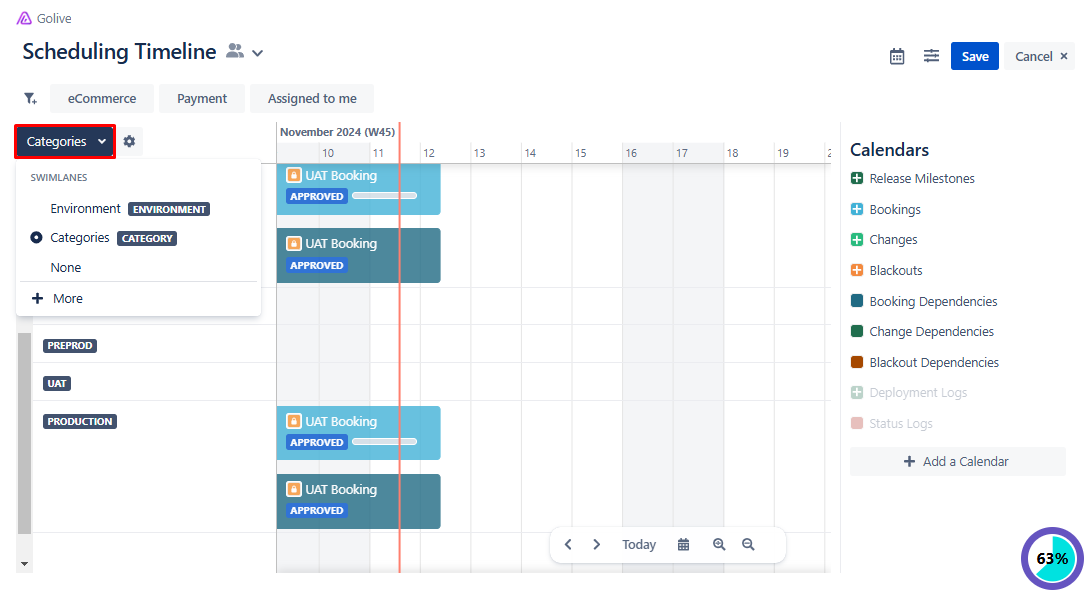
Open the Swimlane Selection menu (next to the Collapse/Expand All button) and select Category.
-
Click the gear icon next to the Swimlane Selection menu to open the Edit Swimlane Cofinguration dialog.
-
Modify the following settings as needed:
-
Filter Categories by: Use the checkboxes to hide None and Empty Swimlanes.
-
Group & Sort Categories:
-
Sort: Select the sorting method (Manual, Rank, or Name).
-
Order: Select the ordering method (Ascending or Descending).
-
-
Other Options: Check the Display Vertically box to switch to a vertical display layout.
-
Click Done to save the changes.